Install OneClean
The first time you open OneClean, macOS blocks it and asks you to approve it. You only do this once.
- Open OneClean.dmg and drag OneClean into Applications.
- Open OneClean. macOS says it can't check the app, because OneClean isn't notarized by Apple yet. Click Done, not Move to Bin.
 “OneClean.app” Not Opened
Apple could not verify “OneClean.app” is free of malware that may harm your Mac or compromise your privacy.
Illustration of the macOS alert - Open System Settings → Privacy & Security and scroll to the bottom.
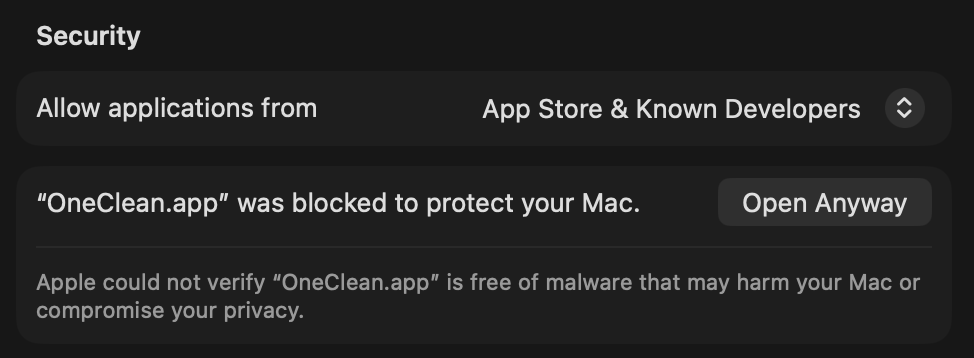
- Next to “OneClean.app” was blocked, click Open Anyway, then confirm with your password.
- Open OneClean again. It starts, and you won't be asked again.
OneClean is free and isn't yet registered with Apple's paid developer programme, which is why macOS asks. The app never deletes anything without asking you first.